搭建typecho流程
环境
腾讯云centos 7
安装nginx、php
yum -y install nginx
yum -y epel-release
yum -y install https://rpms.remirepo.net/enterprise/remi-release-7.rpm
yum -y install yum-utils
yum-config-manager --enable remi-php74
yum -y install php  php-cli php-fpm php-mysqlnd php-zip php-devel php-gd php-mcrypt php-mbstring php-curl php-xml php-pear php-bcmath php-json php-redis
下载typecho和解压
wget https://github.com/typecho/typecho/releases/latest/download/typecho.zip
mkdir -p /www/typecho # 记住这个路径
unzip typecho.zip -d /www/typecho/
配置php和nginx
# 添加用户,假设用deploy部署
useradd deploy
# vim /etc/nginx/nginx.conf
# 注意用户和路径修改为自己的
user deploy; # ============= 注意用户 ==============

worker_processes auto;
error_log /var/log/nginx/error.log;
pid /run/nginx.pid;

# Load dynamic modules. See /usr/share/doc/nginx/README.dynamic.
include /usr/share/nginx/modules/*.conf;

events {
    worker_connections 1024;
}


http {
    include       mime.types;
    default_type  application/octet-stream;
    client_body_temp_path /tmp/;

    #access_log  logs/access.log  main;

    sendfile        on;
    #tcp_nopush     on;

    #keepalive_timeout  0;
    keepalive_timeout  65;

    #gzip  on;


    server {
        listen 1234; # ======= 端口1234 ==================
        # server_name your_domain.com;  # 替换为您的域名
        root /www/typecho/;  # ============= 注意路径 ==============

        if (!-e $request_filename) {
            rewrite ^(.*)$ /index.php$1 last;
        }

        location / {
            index index.php index.html index.htm;

            set $path_info "";
            set $real_script_name $fastcgi_script_name;
            if ($fastcgi_script_name ~ "^(.+?\.php)(/.+)$") {
                set $real_script_name $1;
                set $path_info $2;
            }
            fastcgi_param SCRIPT_FILENAME $document_root$real_script_name;
            fastcgi_param SCRIPT_NAME $real_script_name;
            fastcgi_param PATH_INFO $path_info;
        }

        location ~ .*\.php(\/.*)*$ {
            include fastcgi.conf;
            fastcgi_pass  127.0.0.1:9000;
        }
    }
}
vim /etc/php-fpm.d/www.conf
# 修改user和group
# user = deploy
# group = deploy
文件权限设置
chown -R deploy:deploy /www
chown -R deploy:deploy /var/log/nginx
chown -R deploy:deploy /var/cache/nginx
chown -R deploy:deploy /usr/share/nginx/html
vim /etc/logrotate.d/nginx
# create 0640 nginx root 修改为 create 0640 deploy deploy防火墙设置
如果配置了firewalld
firewall-cmd --add-port=12345/tcp --zone=public --permanent
firewall-cmd --reload
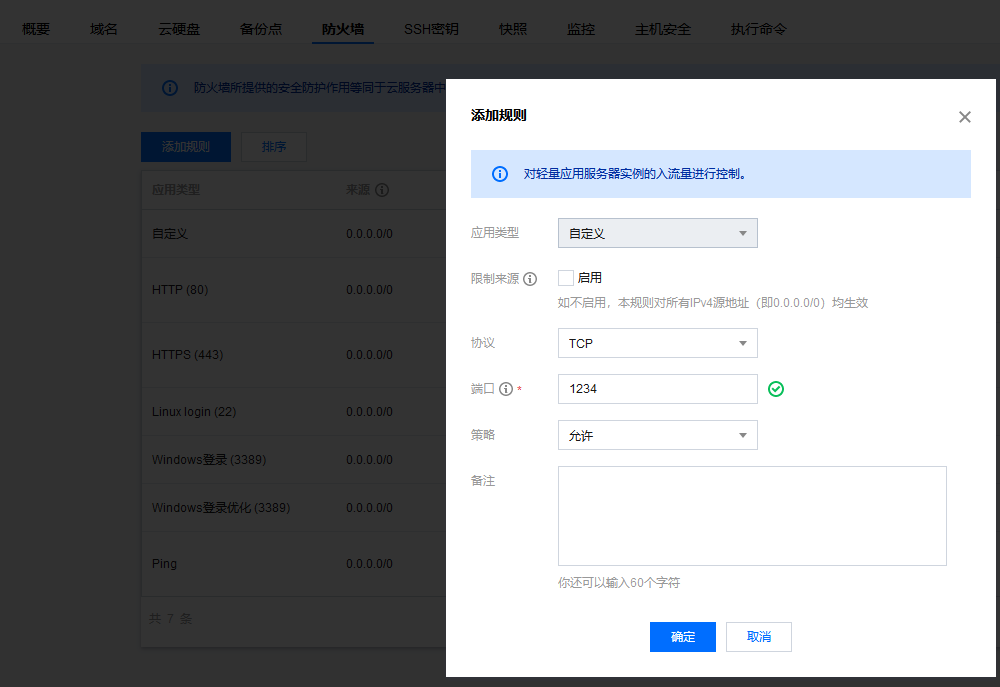
同时确保云服务商安全组开放,参照腾讯云
MaraiaDB配置
实际上支持更多的DB,可以参照官网。mysql的配置与mariadb大致相同
# 安装
yum -y install mariadb-server

mysql_secure_installation
# 推荐设置,密码自己输
# Enter current password for root (enter for none):
# Set root password? [Y/n] y
# New password:
# Re-enter new password:
# Remove anonymous users? [Y/n] y
# Disallow root login remotely? [Y/n] n
# Remove test database and access to it? [Y/n] y
# Reload privilege tables now? [Y/n] y

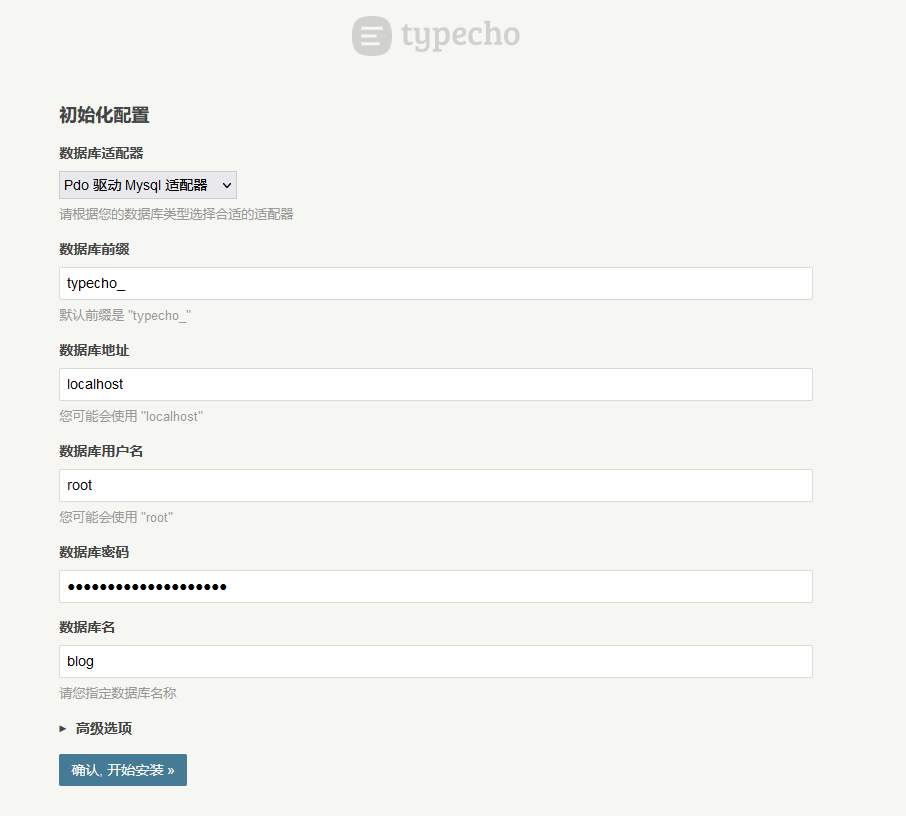
# 创建一个database, 名字叫blog
mysql -u root -p

# MariaDB [mysql]> CREATE DATABASE blog DEFAULT CHARACTER SET utf8mb4 COLLATE utf8mb4_unicode_ci;
# 如果需要远程登录,可以执行这个
# MariaDB [mysql]>update user set host='%' where user='root' limit 1;
启动服务
systemctl start nginx
systemctl enable nginx
systemctl start php-fpm
systemctl enable php-fpm
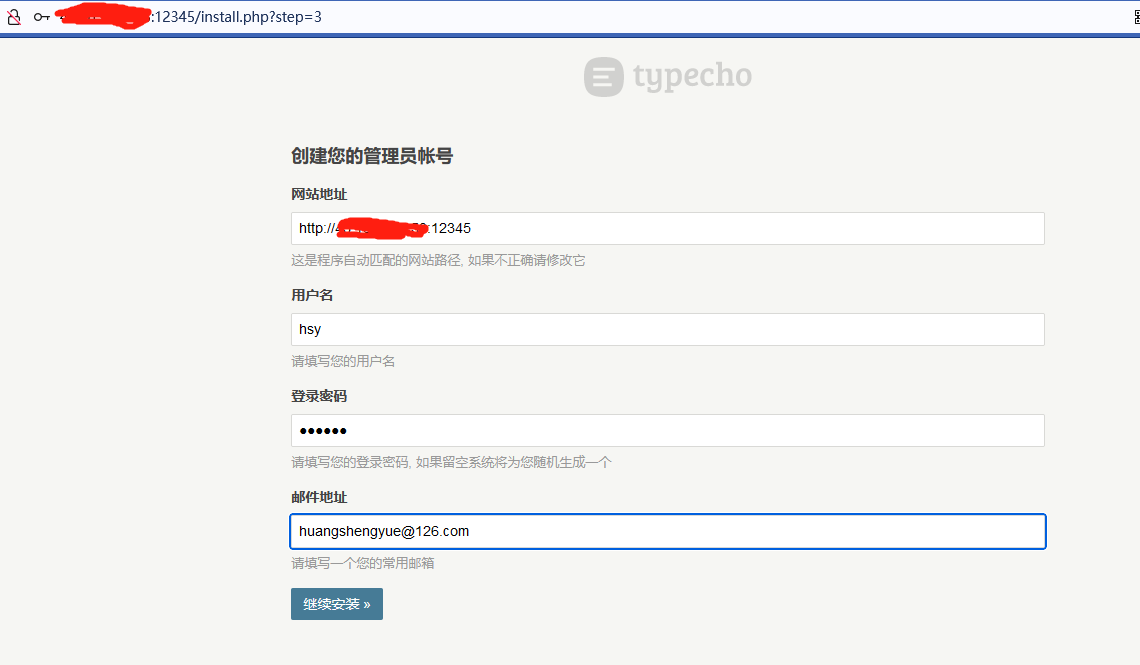
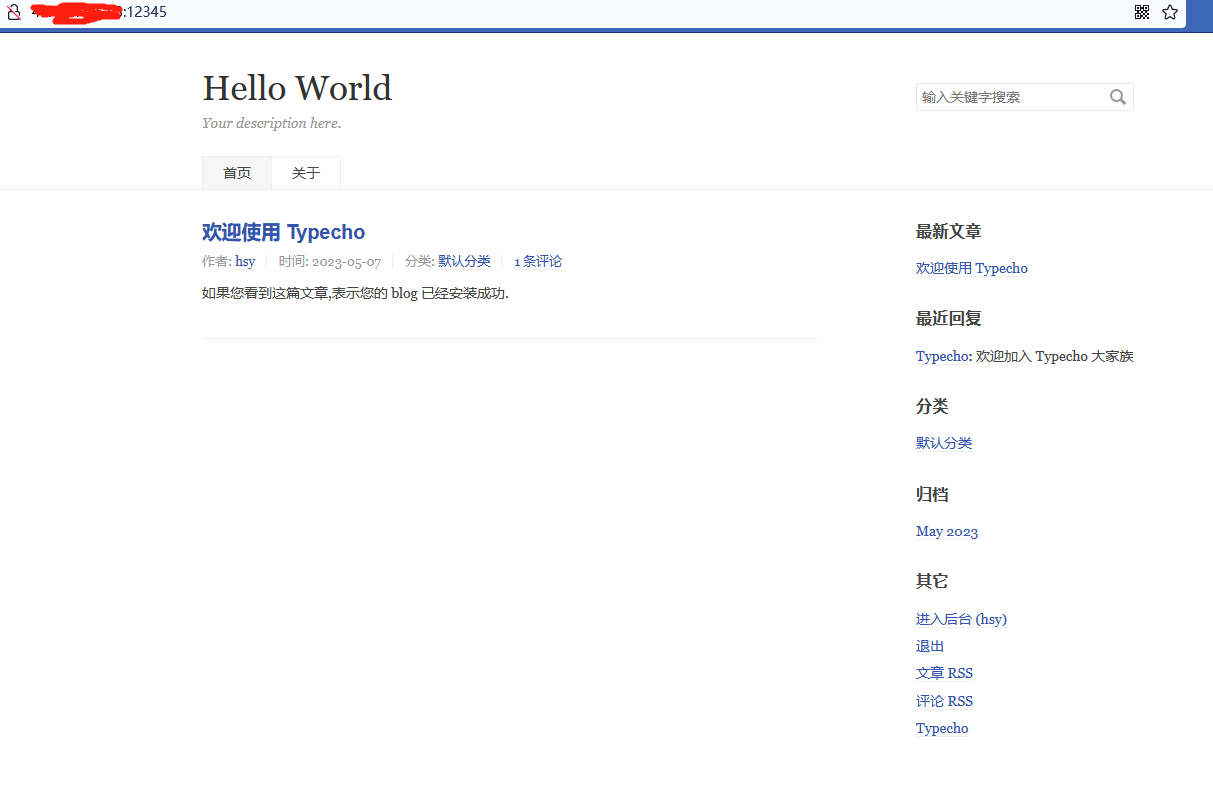
然后就可以访问博客的地址 127.0.0.1:12345开始配置啦,具体地址参照自己的服务

大功告成